Showing posts with label title. Show all posts
Showing posts with label title. Show all posts
Sunday, May 21, 2017
How To Postplace adsense below post title to highest CTR
How To Postplace adsense below post title to highest CTR
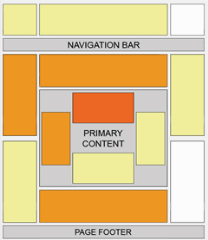
According to the Adsense ads positioning guideline published by Google, the best performing Adsense ad position is above the primary content i.e. above the blog post. This is illustrated by the heat map on the right.
Placing an ad below post title (above post content) is a not at all difficult. All you have to do is create an ad unit on Google Adsense website, get the code and add it to the specified location in your blog template.
(You can’t use Blogger’s Inline Adsense or Adsense gadget because it doesn’t have the option to add an ad under post title).
Here we go,
1. Preparing Adsense ad code
Log in to Google Adsense (opens in tab/window) to create a new ad unit.
For best results choose wide ad size -either 300x250 Medium Rectangle or 336x250 Large Rectangle format. Make sure you assign a new ad channel to it for performance monitoring purposes.
When the setup is complete, you will be given a code.
Run the code through an HTML escape tool to escape special characters in the code. The ad won’t appear if you use the original unescaped ad code.
Copy the escaped code.
2. Adding ad code to the template
Go to Dashboard > Design > Edit HTML.
Tick the Expand Widget Templates check box on top right of the HTML window.
Look for the following line in your HTML code:
<data:post.body/> |
Paste the escaped ad code right above the line, like so:
| <b:if cond=data:blog.pageType == "item"> PLACE AD CODE HERE </b:if> |
Save and view your blog.
3. Monitor ad performance
Make sure you monitor the ad performance. Don’t automatically assume it succeeds in increasing CTR without seeing the actual results.
No two blogs are the same, what works on most blogs may or may not work on yours. If you don’t see positive changes, test again with different ad types, formats, colors and/or placements.
Enjoy!..................... And Say Thank If Have Doubt Feel Free And Ask
Available link for download

Wednesday, March 15, 2017
How to remove Blogger Sidebar widget title
How to remove Blogger Sidebar widget title
How to Remove title of sidebar widget, Remove Sidebar widget title,remove sidebar widget heading

Sidebar usually contains important widgets like Search Bar, Popular Post, Facebook like widget etc. All these widgets have title appearance which is same for all the widgets and that are controlled through your template. So today in this post I will tell you to remove title or heading appearance for a particular widget. From figure you can seen that I have removed the tittle of Facebook like page by making a small modification in blogger Template. you can also easily remove the tittle of any sidebar widget. So lets start the tutorial.
Sidebar usually contains important widgets like Search Bar, Popular Post, Facebook like widget etc. All these widgets have title appearance which is same for all the widgets and that are controlled through your template. So today in this post I will tell you to remove title or heading appearance for a particular widget. From figure you can seen that I have removed the tittle of Facebook like page by making a small modification in blogger Template. you can also easily remove the tittle of any sidebar widget. So lets start the tutorial.
How To Remove Tittle Of Sidebar Widget:-
- In Blogger Dashboard Go to Design / Edit HTML.
- Click "Expand Widget Template".
- Download the Full template before making any changes in it (More info).
How To Remove Tittle of Facebook like Page:-
Find following piece of code in blogger template.
<b:widget id=HTML1 locked=false title=Find us on Facebook type=HTML>

<b:includable id=main>
 <!-- only display title if its non-empty -->
 <b:if cond=data:title>
 <h2><data:title/></h2>
 </b:if>
 <div class=widget-content>

 <data:content/>
 </div>
- If you want to remove title of Facebook like Page then the corresponding code will be.
<b:widget id=HTML1 locked=false title=Find us on Facebook type=HTML>
<b:includable id=main>
 <!-- only display title if its non-empty -->


 <div class=widget-content>

 <data:content/>
 </div>
- Save the template, Now your Facebook widget will shows up with no tittle.
How to remove Tittle of Subscribe Via Email:-
- In a similar way you can also remove title of this widget. Just find the code below and remove the red part containing it.
<b:widget id=HTML2 locked=false title=Subscribe via email type=HTML>
<b:includable id=main>
<!-- only display title if its non-empty -->
<b:if cond=data:title != "">
<h2 class=title><data:title/></h2>
</b:if>
<div class=widget-content>
<data:content/>
</div>
.
.
.
How to Remove Title OF Blog Archive:-
- Search for following piece of code and remove the red part from the code.
<b:widget id=BlogArchive1 locked=false title=Blog Archive type=BlogArchive>
<b:includable id=main>
 <b:if cond=data:title>
 <h2><data:title/></h2>

 </b:if>
 <div class=widget-content>
 <div id=ArchiveList>
 .
 .
 .
How to Remove Title OF Labels:-
- Search for following code and remove the red part of the code.
<b:widget id=Label1 locked=false title=Labels type=Label>M
<b:includable id=main>
<b:if cond=data:title>
<h2><data:title/></h2>
</b:if>
<div expr_class="widget-content " + data:display + "-label-widget-content">
.
.
.
Available link for download
Subscribe to:
Posts (Atom)