Showing posts with label store. Show all posts
Showing posts with label store. Show all posts
Friday, June 9, 2017
How To Use Digital Locker to Store Documents Online
How To Use Digital Locker to Store Documents Online
Indian Government Now launched digital lockers to store documents online after issued Aadhaar Card for all indian people.

In November Month 2014, the Indian government had projected a ‘Digital locker’ concept to store all certificates and necessary online. UIADI adhaar card holder can save online all government issued documents (from birth certificate to educational/Academic degrees) on the cloud storage system. By connected aadhar number users can access these.
A beta version of the ‘digital locker’ rolled out by the department of electronics and information technology, INDIA. Is it most determined part of Digital India programme by Prime Minister Narendra Modi’s.
The Core Concept behind digital locker scheme to gather all Indian citizens detail of medical, passport, educational and Pan Card etc. over cloud storage system to make easy to access from anywhere in the world cities, towns and countries. Best Part is, in future you no need to carry certificates physically.
Digi locker govt of india service in Beta level now. It’s successful implementation DeitY invite public valuable feedback and comments on this concept.
R.S. Sharma, secretary, department of electronics and IT, declare that the structure is completely safe for security of the store e documents.
When User Login to Digilal eLocker, Everytime New OTP [One Time Password] generate and send by SMS on user registered mobile number, like online banking transaction we do.
“Maha Digital Locker” launched by Maharashtra government. Anyone aadhar card issuer in state of Maharashtra can take benefits of e-locker facility by logging in on elocker.maharashtra.gov.in.

Enter OTP and see the DASHBOARD to upload your current documents online. There are dropdown menu to all kinds of documents you wish to save.

After successful of upload process, if you want you can share documents to any email id. You can e-sign the uploaded document, which be used as official digital signature on documents.

Sure, Digital Locker will help millions of Indians people to keep all their documents safe online.
Initially, elocker provide limit of 10mb space for all store documents.
How to Integration between Central Govt and State Govt Digital Locker?
Now, it is not clear how to link State Govt and Central Goverment digital lockers will integrate with each other.

A beta version of the ‘digital locker’ rolled out by the department of electronics and information technology, INDIA. Is it most determined part of Digital India programme by Prime Minister Narendra Modi’s.
How to Use Digilocker to Store Documents Online ?
To apply for digilock government of India, consumer first step is required to make an account using their Aadhaar card/ unique identification (UID) number.The Core Concept behind digital locker scheme to gather all Indian citizens detail of medical, passport, educational and Pan Card etc. over cloud storage system to make easy to access from anywhere in the world cities, towns and countries. Best Part is, in future you no need to carry certificates physically.
Digi locker govt of india service in Beta level now. It’s successful implementation DeitY invite public valuable feedback and comments on this concept.
R.S. Sharma, secretary, department of electronics and IT, declare that the structure is completely safe for security of the store e documents.
When User Login to Digilal eLocker, Everytime New OTP [One Time Password] generate and send by SMS on user registered mobile number, like online banking transaction we do.
“Maha Digital Locker” launched by Maharashtra government. Anyone aadhar card issuer in state of Maharashtra can take benefits of e-locker facility by logging in on elocker.maharashtra.gov.in.
How To Use Digital Locker?
First Step: Login to http://digitallocker.gov.in, Enter Aadhaar Number with captcha [verification number shown], after insert aadhar card id number, a OTP send to already registered number and email address.Enter OTP and see the DASHBOARD to upload your current documents online. There are dropdown menu to all kinds of documents you wish to save.
After successful of upload process, if you want you can share documents to any email id. You can e-sign the uploaded document, which be used as official digital signature on documents.
Sure, Digital Locker will help millions of Indians people to keep all their documents safe online.
Initially, elocker provide limit of 10mb space for all store documents.
How to Integration between Central Govt and State Govt Digital Locker?
Now, it is not clear how to link State Govt and Central Goverment digital lockers will integrate with each other.
Available link for download

Thursday, June 1, 2017
How to Create an Apple ID Account and Download Apps from Apple App Store
How to Create an Apple ID Account and Download Apps from Apple App Store
How to Create an Apple ID Account and Download Apps from Apple App Store
There is no doubt that besides the features of the phone itself; apps are the things that make a smartphone even smarter. Apple also occupies the top place for apps manufacture. The app developer community of Apple has created over 775,000 apps for various products from Apple such as iPhone, iPad, iPod throughout the world and has spent billions dollars for them. Apple App Store is the place where you can get all those apps. Some of the apps can be downloaded for free while others are available in nominal price. Apple just recently announced that over 40 billion apps have been downloaded from app store since its launch in 2008. Apple claims that nearly 20 billion apps were downloaded in 2012 alone. It also claims that there are over 500 million active user of App Store. If you use any of the Apple products and want to download some apps from Apple App Story, you need have an Apple ID account. The same Apple ID account can be used to download apps from iTunes Store, App Store, iBookstore, and Mac App Store.
1.Creating an Apple ID account on iPhone
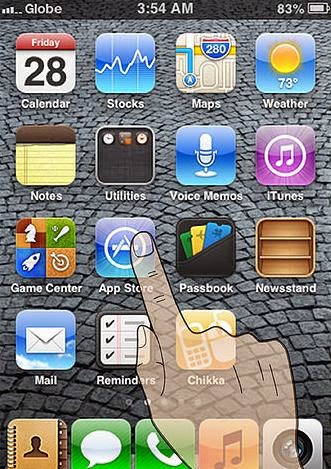
2.The very first thing, you need to do on your iPhone is find and open the App Store. You can locate App Store icon in blue color that contain the letter ‘A’ surrounded by a circle.
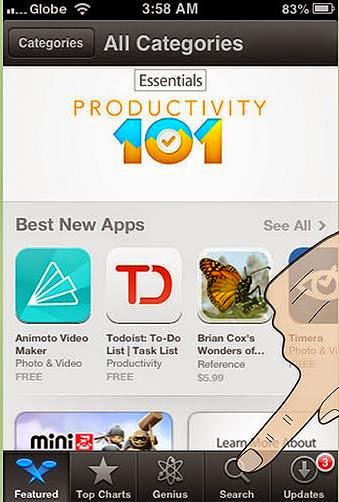
3.Next you need to browse and find the app you want to download. There are different categories like new apps, popular and frequently downloaded apps, featured apps, the current top 25 apps, or view apps by category for easy browsing. You can also directly search the apps you want to download by tapping on the search bar and typing the keywords or app name
4.Once you find the app you’re looking for, tap on it to view the details. The details of app may include complete description of the app, developers name or company, its price if not available for free, along with reviews and ratings provided by other iPhone users.
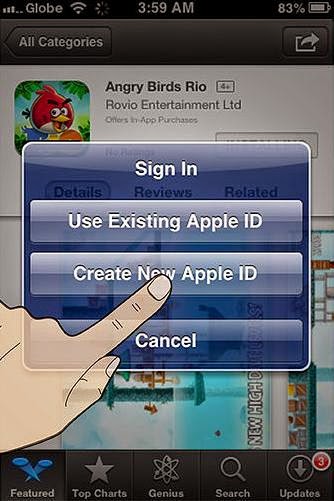
5.You then must tap on install button to install the app on your device. When you do that a new window appears telling you to sign in or create a new Apple ID. Proceed with create new Apple ID, fill in the necessary details and then tap Done.
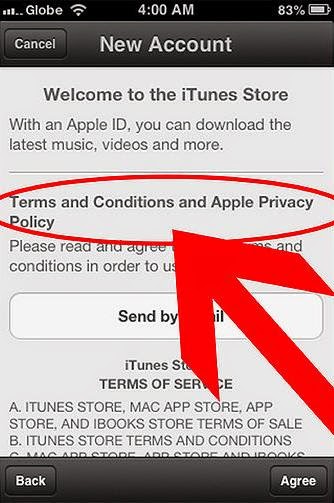
6.You’ll need to read the Terms and conditions of Apple App Store and click on Agree button located at the bottom of the page to proceed.
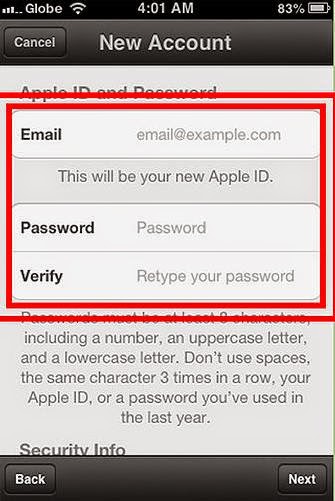
7.Next you need to enter your email address, birthday, answer security question, and create your password.
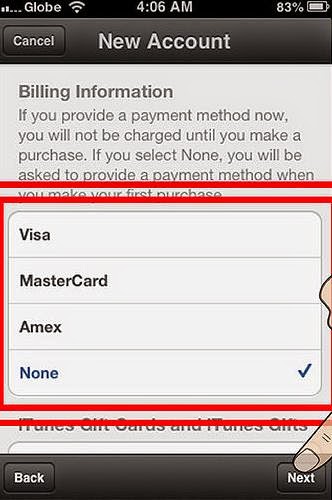
8.After that you need to select the mode of payment for paid apps and none for free apps and tap next.
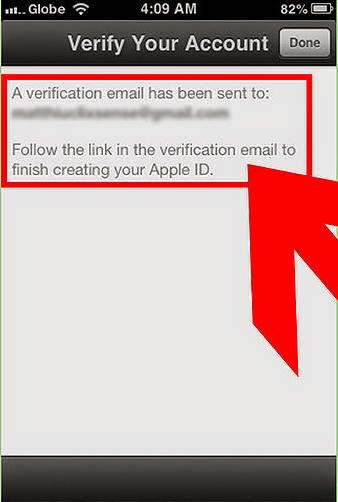
9.Now you will see a new window asking you to verify your account. You need to check your email to activate your account. And when you tap on the link you will automatically prompted to sign in with your account and password.
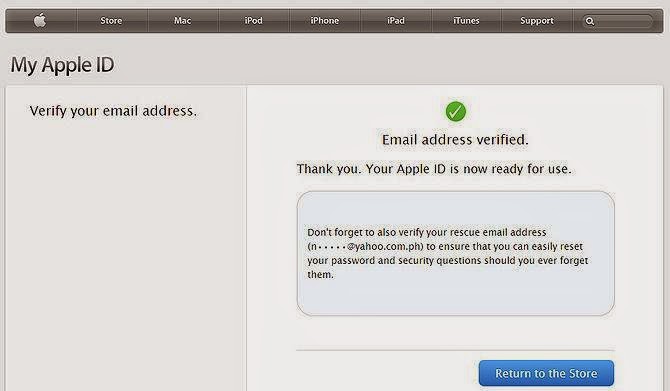
10.Once you do that, you have successfully created an Apple account and can now download the apps and enjoy iTunes, iBookstore and App store on your iPhone, iPad or iPod.
Available link for download
Subscribe to:
Posts (Atom)